Create Kubernetes Secrets with `kubectl`

Gabriel Manricks
Chief Architect, ClearX
Published: 1/31/2024
In Kubernetes, a Secret is an object that stores sensitive data for containers to use in the form of a key-value pair, such as a password, a token, or an access key.
The short answer
To create a Secret, you can use the kubectl create secret generic command as follows:
Where:
- secret_name is the name of the secret.
- key is the name of the key (e.g. password).
- value is the value of the key (e.g. S!B\*d$zDsb=).
For example:
The above command will create a general-purpose secret called demo-secret with two keys dbPassword and dbUser.
To view the secret in yaml format you can use the kubectl get secret command as follows:
Note that these values are, by default, encoded into Base64, but you can easily retrieve a specific value and decode it using the following command:
Which is quite useful if, for example, you've installed a Helm chart that generates random passwords at installation and you need to retrieve these values in order to manually access the instance.
Easily retrieve this command using Warp’s AI Command Search
If you’re using Warp as your terminal, you can easily retrieve this command using the Warp AI Command Search feature:
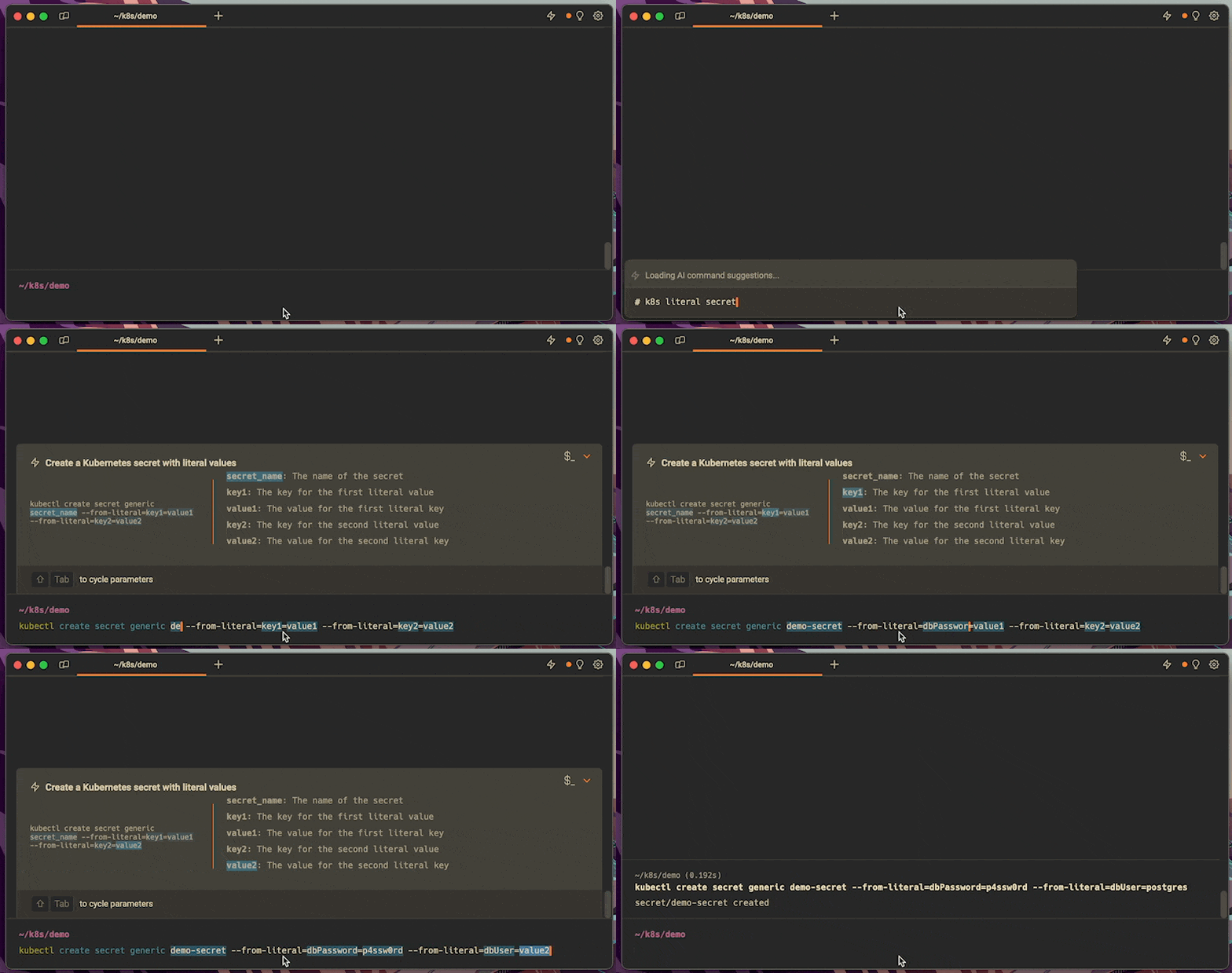
Entering k8s literal secret in the AI Command Search will prompt a kubectl command that can then quickly be inserted into your shell by doing CMD+ENTER.
Note that you can also recall the decode command by entering k8s decode secret key.
Creating a Secret from a file
To create a Secret from a value contained in a regular file, you can use the --from-file flag as follows:
For example:
When creating a secret using a file, kubectl will use the filename as the default key and the file contents as the value.
To specify a different key, you can use the following syntax:
For example:
In this case, the key will be private-key instead of secret.txt
Note that you can use both the --from-literal and --from-file flags at the same time.
Creating a Docker Secret
Kubernetes Docker Secrets are a special kind of Secrets used by Kubernetes to authenticate with a Docker registry when pulling images for containers. This is common if you store your images in a private docker registry.
Using the Docker configuration
Docker usually stores your credentials or token information inside a file named ~/.docker/config.json after logging in with the docker login command.
To create a Kubernetes Secret from this Docker configuration file, you can use the kubectl create secret docker-registry command as follows:
Where the key will be set to .dockerconfigjson and its value to the contents of the ~/.docker/config.json file.
Note that unlike generic Secrets, this Docker Secret will have a kubernetes.io/dockerconfigjson type.
Using the command-line interface
Alternatively, you can directly create a Docker Secret in the command using the --docker-server, --docker-username and --docker-password flags like so:
You can then attach it to any pod spec to tell Kubernetes to use this Secret for pulling that image as follows:
Refreshing pull Secrets
Note that if you are using a private registry that uses a custom CLI to generate a temporary token - like AWS’s ECR for instance - you will need to put in place a mechanism for your cluster to refresh the token.
A popular way to do this is by creating a special read-only account to your registry, and then creating a Kubernetes Job to periodically recreate the secret in Kubernetes.
Creating a TLS Secret
TLS Secrets are used for storing TLS certificates and keys for things like securing an ingress with HTTPS.
Creating a self-signed certificate
TLS certificates and keys can either be acquired from a Certificate Authority or self-signed.
To create a self-signed certificate, you can run the following openssl command:
Following the prompt with really only “Common Name” being important and should be set to the domain you are trying to secure.
Creating a TLS Secret
Once your TLS certificate and key downloaded or generated, you can create a TLS Secret using the following kubectl create secret tls command:
Which will contain two keys: tls.crt and tls.key.
You can then add the following configuration to your Ingress spec to enable TLS:
You can learn more about certificates by reading our article on how to generate your own certificate signing request.
Creating a Secret from an env file
Env files are pretty popular in development with libraries like dotenv that allow you to load environment variables dynamically per program. Kubernetes allows you to create a regular generic secret from this type of file automatically.
For example, if we create a new env file called staging.env
We can convert this file into a secret using the following command:
Connecting a Secret to a Pod
There are essentially two ways to attach a secret’s values to a pod:
- As a file mounted in a container.
- As an environment variable.
Mounting a Secret as a file
To mount a file into the container with the value of one of the secret’s keys, you can create a Pod file as follows:
There are two main parts here, the volumes key defines a new volume named secret-volume. The volume’s source is defined to be from a secret named demo-secret and we are saying take the key called REDIS_HOST from the secret and mount it as a file called ‘redis_host.txt’
The section above starting with volumeMounts takes the volume we defined and says to mount it at /etc/config so, in the end, we will have a file containing the value of REDIS_HOST mounted at /etc/config/redis_host.txt
Mounting a Secret as an environment variable
Attaching a secret to a container as an environment variable can be achieved using a secretKeyRef to reference a value from a secret when setting an environment variable.
For example, if we wanted to mount the REDIS_HOST key from our secret as an environment variable we can create the following pod file:
Where:
- env.name is how to call the environment variable inside the container.
- secretKeyRef.name is the name of the secret.
- secretKeyRef.key is the key inside the referenced secret we will attach to this environment variable.
Written by
Gabriel Manricks
Chief Architect, ClearX
Filed Under
Related Articles
Copy Files From Pod in Kubernetes
Learn how to copy files and directories from within a Kubernetes Pod into the local filesystem using the kubectl command.

Scale Deployments in Kubernetes
Learn how to manually and automatically scale a Deployment based on CPU usage in Kubernetes using the kubectl-scale and kubectl-autoscale commands.
Get Kubernetes Logs With kubectl
Learn how to get the logs of pods, containers, deployments, and services in Kubernetes using the kubectl command. Troubleshoot a cluster stuck in CrashloopBackoff, ImagePullBackoff, or Pending error states.

Forward Ports In Kubernetes
Learn how to forward the ports of Kubernetes resources such as Pods and Services using the kubectl port-forward command.
Tail Logs In Kubernetes
Learn how to tail and monitor Kubernetes logs efficiently to debug, trace, and troubleshoot errors more easily using the kubectl command.
Get Context In Kubernetes
Learn how to get information about one or more contexts in Kubernetes using the kubectl command.
Delete Kubernetes Namespaces With kubectl
Learn how to delete one or more namespaces and their related resources in a Kubernetes cluster using the kubectl command.
Get Kubernetes Secrets With kubectl
Learn how to list, describe, customize, sort and filter secrets in a Kubernetes cluster by name, type, namespace, label and more using the kubectl command.

List Kubernetes Namespaces With kubectl
Learn how to list, describe, customize, sort and filter namespaces in a Kubernetes cluster by name, label, and more using the kubectl command.
How To List Events With kubectl
Learn how to list and filter events in Kubernetes cluster by namespace, pod name and more using the kubectl command.
Kubernetes vs Docker: The Backbone of Modern Backend Technologies
Lean the fundamentals of the Kubernetes and Docker technologies and how they interplay with each other.
Set Context With kubectl
Learn how to create, modify, switch, and delete a context in Kubernetes using the kubectl config command.
