In Kubernetes, a Secret is an object that stores sensitive data for containers to use in the form of a key-value pair, such as a password, a token, or an access key.
The short answer
To display the detailed list of Secrets stored in the Kubernetes cluster, including their name, type, number of data values, and age, you can use the following command:
Which will output something similar to this:
Where:
- NAME is the unique name of the Secret.
- TYPE is the built-in type of the Secret like Opaque, kubernetes.io/ssh-auth etc.
- DATA is the number of data values the Secret contains.
- AGE is the time when the Secret was created.
If you want to learn more about Secrets, you can read our article on how to create a Secret in Kubernetes with kubectl.
Easily retrieve this command using Warp’s AI Command Suggestions
If you’re using Warp as your terminal, you can easily retrieve this command using the Warp AI Command Suggestions feature:
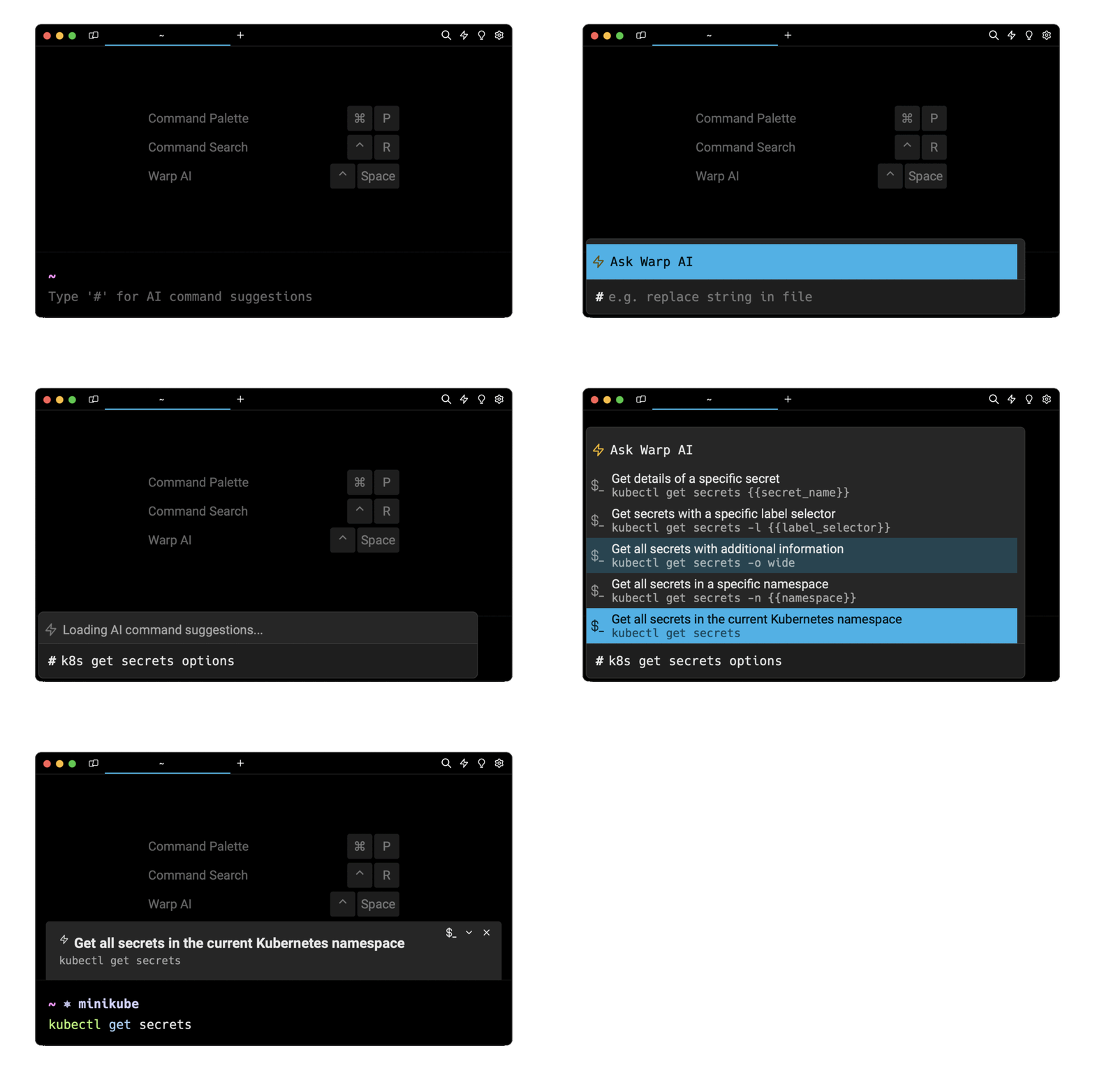
Entering k8s get secrets options in the AI Command Suggestions will prompt a list of kubectl commands that can then quickly be inserted into your shell by doing CMD+ENTER.
Listing secrets in the YAML and JSON formats
By default, the output format of the kubectl get secrets command is a table. However, you can specify other formats, such as YAML or JSON using the -o flag (short for --output):
Where:
- output_format is one of yaml or json.
For example, the following command will output comprehensive details about all the Secrets in the YAML format:
Listing Secrets by name
To list one or more Secrets by name in your Kubernetes cluster, you can use the kubectl get secrets command as follows:
Where:
- secret_name… is a list of Secret names separated by a space character.
For example, the following command will output a table of information about the Secrets named mysecret1 and mysecret2:
Listing Secrets by label
Labels are key-value pairs attached to the Kubernetes objects that organize resources based on specific criteria.
To list Secrets based on a specific label, you can use the kubectl get secrets command with the -l flag (short for --label):
Where:
- label is the key of the label.
- value is the value associated with the label.
For example, the following command will display all the Secrets labeled app=myapp:
Listing the labels of all Secrets
To view the labels associated with all the secrets at once, you can use the kubectl get secrets command with the --show-label flag:
Upon execution, the above command will output an additional column showing any labels associated with secrets.
Listing Secrets by type
To list Secrets based on a specific type, you can use the kubectl get secrets command with the --field-selector flag:
Where:
- The field_name is a JSONPath expression used for selecting a specific field.
- The field_value is the value for the specified field.
For example, this command will filter and display the list of all Secrets with type Opaque :
And this command will get the list of TLS Secrets via selecting the type kubernetes.io/tls:
Listing Secrets by namespace
In Kubernetes, namespaces provide a logical way to separate resources within an application.
To list all the Secrets in a specified namespace, you can use the kubectl get secrets command with the -n flag (short for --namespace) as follows:
For example, this command will list all the Secrets in the myNamespace namespace.
Listing Secrets in all namespaces
To list Secrets across all namespaces, you can use the kubectl get secrets command with the --all-namespaces flag:
Extracting Secrets information
To output specific field values of Secrets, you can use the kubectl get secrets command with the -o flag combined with a JSONPath expression as follows:
Where:
- expression is a JSONPath expression
For example, this command will extract the key-value pairs of each label assigned to the Secret:
Where:
- .items[*] indicates to iterate over each Secret.
- .metadata specifies the Secret metadata.
- labels retrieves the label name from the metadata information.
Decoding the values of Secrets
By default, the data values of Secret objects are encoded in Base64, providing a protective measure to conceal their contents.
To decode and retrieve a specific value, you can use the kubectl get secrets command as follows:
Where:
- The secret_name is the name of a specific Secret.
- The field_name is the field name for which you want to get the value using the JSONPath expression.
- The | is a pipe symbol that redirects the output of one command to the input of another command.
- The base64 is a command that encodes or decodes data using the Base64 algorithm.
- The -d is an option used with base64 command for decoding the input data.
For example, this command will fetch the Secret object mysecret, extract the username value from it and decode it from Base64 to plain text:
Sorting the output of the kubectl get secrets command
To sort the output of the kubectl get secrets command based on a specific field, you can use the kubectl get secrets command with the --sort-by flag:
Where:
- expression is a JSONPath expression.
For example, this command will display the list of all Secrets sorted by their names in ascending order:
Customizing the output of the kubectl get secrets command
To customize the output columns of the kubectl get secrets command, you can use the kubectl get secrets command with the -o custom-columns flag:
Where:
- custom_column_name is the name you want to assign to a column.
- expression is a JSONPath expression.
For example, this command will only output the NAME and TYPE columns populated with the values of the metadata.name and type properties:
Note that if specifying custom-columns becomes lengthy or if you plan to reuse the same column configurations frequently, you can opt for a template file as follows:
Where the myTemplate.txt file has the following content:
Describing secrets with additional information
To display additional information about the secrets, you can use the kubectl describe secrets command as follows:
Where:
- secret_name … is a list of Secrets names separated by a space indicator.
For example, this command will output details about the mysecret1 and mysecret2 Secrets, such as their associated labels, annotations, type, data size, and more.
To output details about all secrets in the cluster, execute the following command without specifying secret names:
Written by

Mansi Manhas
Filed Under
Related Articles
Copy Files From Pod in Kubernetes
Learn how to copy files and directories from within a Kubernetes Pod into the local filesystem using the kubectl command.

Scale Deployments in Kubernetes
Learn how to manually and automatically scale a Deployment based on CPU usage in Kubernetes using the kubectl-scale and kubectl-autoscale commands.
Get Kubernetes Logs With kubectl
Learn how to get the logs of pods, containers, deployments, and services in Kubernetes using the kubectl command. Troubleshoot a cluster stuck in CrashloopBackoff, ImagePullBackoff, or Pending error states.

Forward Ports In Kubernetes
Learn how to forward the ports of Kubernetes resources such as Pods and Services using the kubectl port-forward command.
Tail Logs In Kubernetes
Learn how to tail and monitor Kubernetes logs efficiently to debug, trace, and troubleshoot errors more easily using the kubectl command.
Get Context In Kubernetes
Learn how to get information about one or more contexts in Kubernetes using the kubectl command.
Delete Kubernetes Namespaces With kubectl
Learn how to delete one or more namespaces and their related resources in a Kubernetes cluster using the kubectl command.
List Kubernetes Namespaces With kubectl
Learn how to list, describe, customize, sort and filter namespaces in a Kubernetes cluster by name, label, and more using the kubectl command.
How To List Events With kubectl
Learn how to list and filter events in Kubernetes cluster by namespace, pod name and more using the kubectl command.
Kubernetes vs Docker: The Backbone of Modern Backend Technologies
Lean the fundamentals of the Kubernetes and Docker technologies and how they interplay with each other.

Set Context With kubectl
Learn how to create, modify, switch, and delete a context in Kubernetes using the kubectl config command.
List Pods With kubectl
Learn how to list and filter Kubernetes Pods by name, namespaces, labels, manifests, and more using the kubectl command.
