The short answer
In some cases, you might end up with a broken installation of npm, preventing you from managing your locally or globally installed packages.
To force reinstall the npm command-line tool on macOS and Linux, you can run the following curl command:
That will fetch and execute the official npmjs installation script.
Once executed, you can verify that the installation was successful by displaying the current version of npm using the -v option flag:
Note that if you're facing incompatibility issues between your npm and node versions, or you simply want to update npm to a higher version, you can read our article on how to update npm globally or per project.
Easily retrieve this command using Warp’s AI Command Search
If you’re using Warp as your terminal, you can easily retrieve this command using the Warp AI Command Search feature:
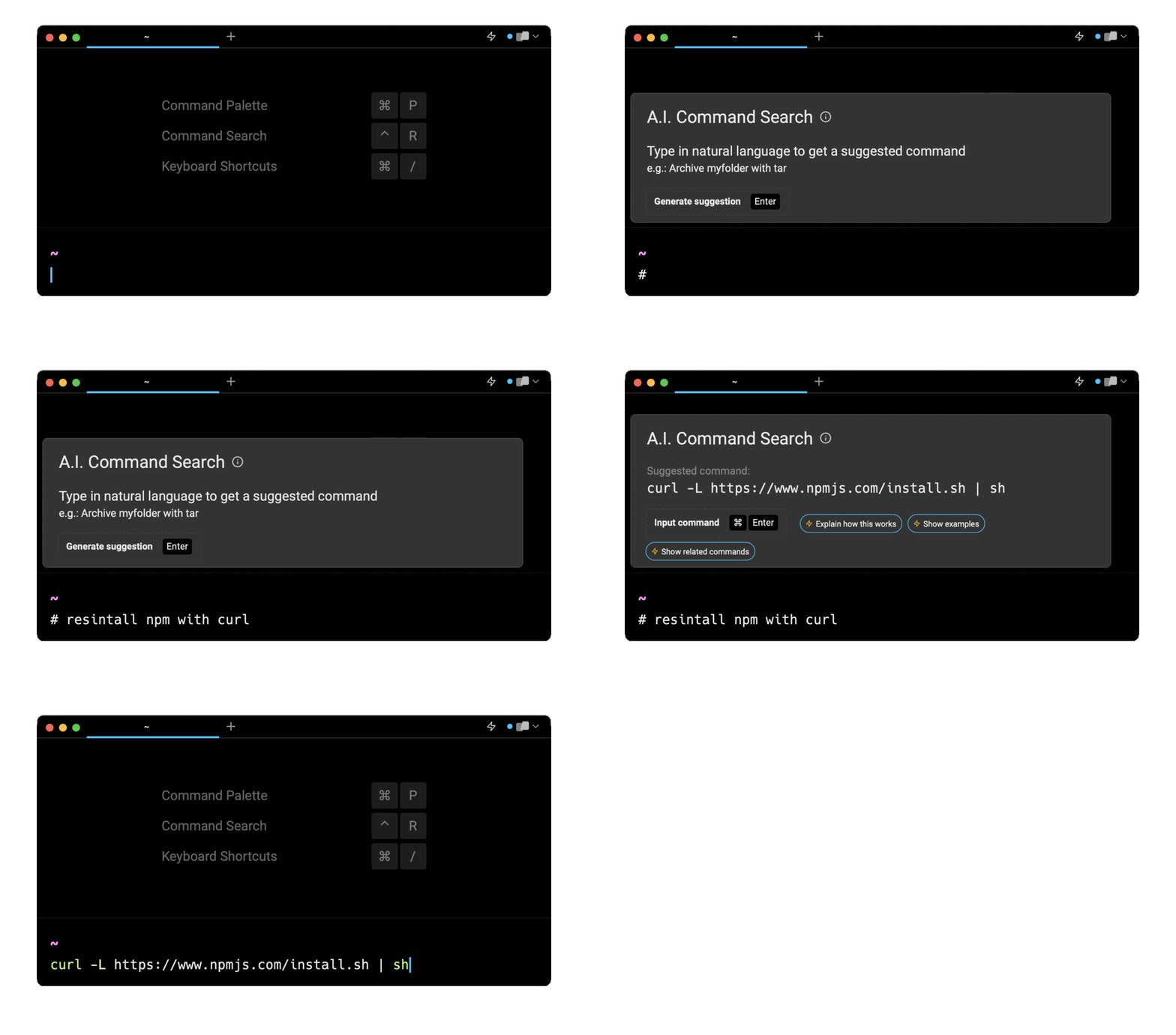
Entering reinstall npm with curl in the AI Command Search will prompt a curl command that can then quickly be inserted into your shell by doing CMD+ENTER.
Reinstalling Node.js and npm using the terminal
Since, by default, Node.js and npm are bundled together, reinstalling node will also reinstall npm to its latest supported version, thus avoiding compatibility issues.
Reinstalling Node.js on MacOS with brew
To reinstall Node.js on MacOS with Homebrew, you can use the brew reinstall command:
Where <version> is the current version of Node.js in use, which can be found using the node -v command.
For example:
Reinstalling Node.js on Linux with apt
To reinstall Node.js on Linux with apt, you have to start by uninstalling it using the remove, purge, and autoremove commands:
Which will remove the current Node.js distribution from your system, as well as its configuration files, and any other unused packages that were installed with it.
Once you've done that, you can reinstall Node.js using the following command:
Reinstalling Node.js on macOS, Linux, and Windows with nvm
If you are using nvm as your Node.js version manager, you can start by deactivating the desired Node.js version using the deactivate command:
As you might otherwise get the following error message:
You can then remove it from your system using the uninstall command:
Then, reinstall it using the install command:
And finally set it as your current version using the use command:
For example, to reinstall Node.js version 20:
Reinstalling Node.js and npm using the Node installer
Whether you're using macOS, Linux, or Windows, the easiest way to reinstall Node.js using the graphical interface is to visit the official Node.js website at https://nodejs.org/en/download.
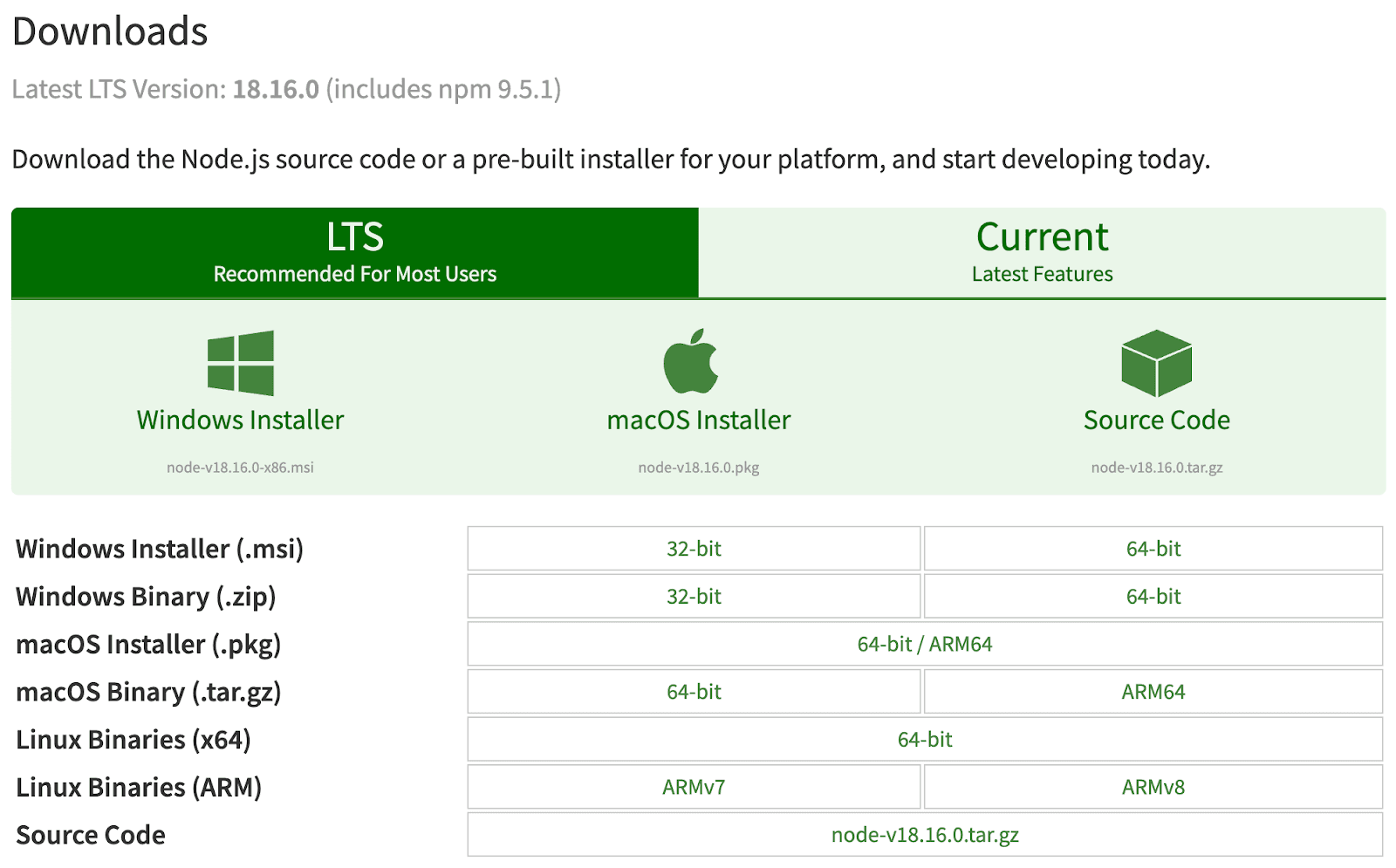
Then click on the desired distribution to download the GUI installer program.
Written by

Razvan Ludosanu
Founder, learnbackend.dev
Filed Under
Related Articles
Removing npm Packages
Learn how to remove packages locally, globally, and from the registry using the npm uninstall command.

Execute Packages With npx And npm
Discover the power of npm's npx tool, a developer's best friend for running packages without global installs.

Install Dev Dependencies With npm
Learn how to install and update dev dependencies using the npm install command.

Clear npm Cache
Learn how to clear the npm cache on Linux, macOS, and Windows.
How To Update NPM
Learn how to update npm to a specific version using the npm, nvm, or npx commands.
How To Reinstall Packages With Npm
Brief guide to reinstalling npm packages using npm
Check Npm Package Version
Check an npm package version within your project
Install NPM Packages From GitHub
Check an npm package version within your project
List Installed Npm Packages
Learn how to list globally and locally installed packages with npm, including their dependencies.
