List Installed Packages With Brew

Razvan Ludosanu
Founder, learnbackend.dev
Published: 5/7/2024
The short answer
To get a list of all the CLI and GUI packages installed with Homebrew, you can use the following brew command:
Alternatively, you can use the --formula flag to list the CLI packages only:
Or the --cask flag to list the GUI packages only,
Checking an installed package
To check whether a particular package is already installed, you can append the package name to the brew list command as follows:
Which will either output the local path of the package if it is installed:
Or an error message otherwise:
Remind yourself of the syntax using AI Command Search
If you’re using Warp as your terminal, you can easily retrieve this command using the Warp AI Command Search feature:
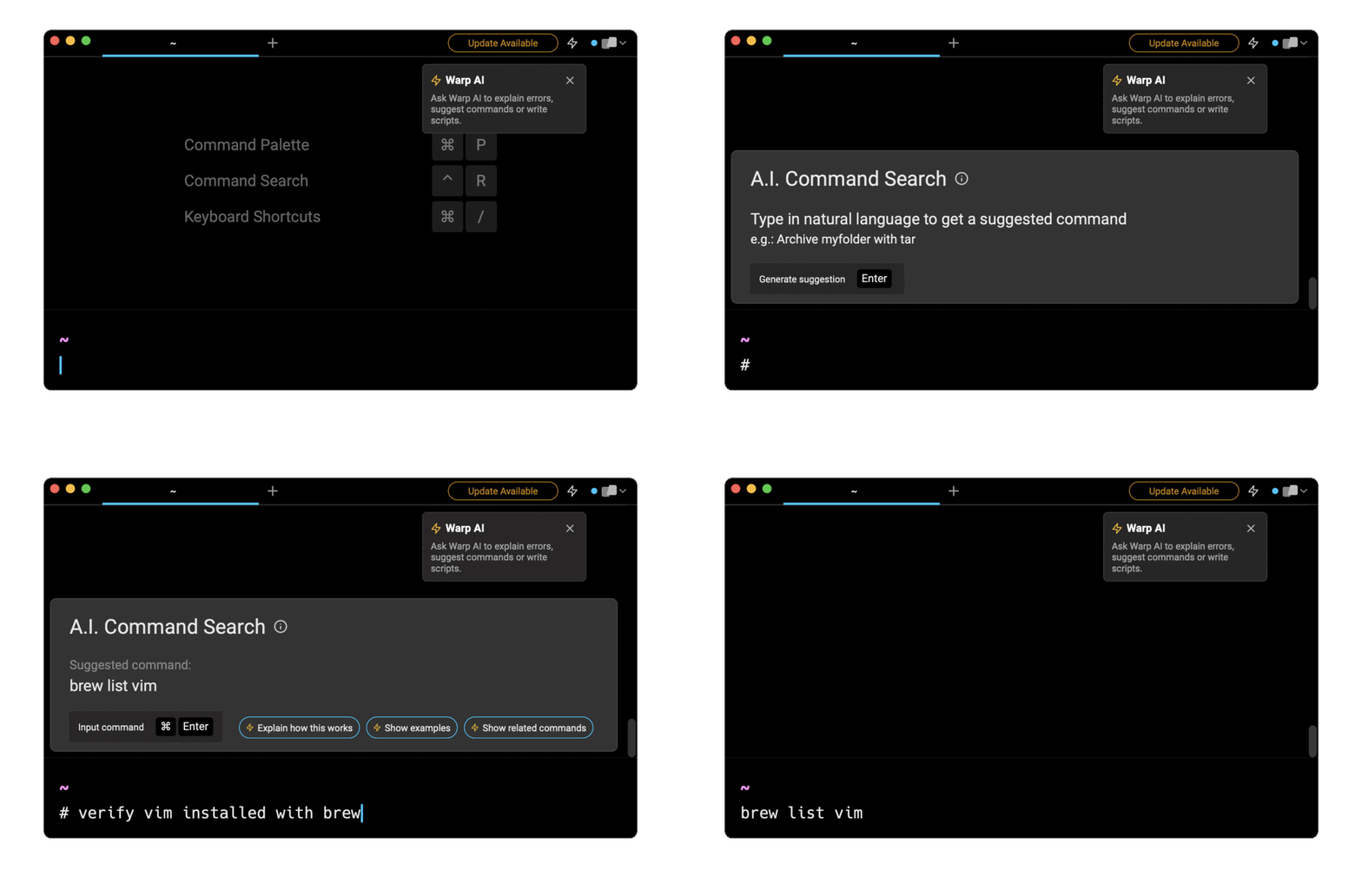
Entering verify vim installed with brew in the AI Command Search prompt results in brew list vim, which you can then quickly insert into your shell by doing CMD+ENTER.
List the versions of installed packages
Since Homebrew allows you to install and manage multiple versions of a package at the same time, you can use the --versions flag to get a list of all the installed packages including their version numbers:
Alternatively, you can filter out this list by only printing the list of packages with multiple versions installed using the --multiple flag:
Finally, to get the version numbers of a particular package, you can append the package name at the end of this command:
Note that all of these above commands can be combined with the --formula and --cask flags as follows:
Written by
Razvan Ludosanu
Founder, learnbackend.dev
Filed Under
